Jumat, 04 November 2016

6 Great Websites That Offer Free Online Courses - Kang Khoe

November  4, 2016
One of the best advantages of the Internet and web technologies is that they have levelled the educational playground making education and learning accessible to anyone anywhere in the world with a computer and Internet connection. Whether you want to pick up a foreign language or learn the basics of a craft from scratch, 'you Google it and you find it'. With the widespread of open courseware and MOOCs, everybody now can have access to a plethora of high quality lessons and learning materials offered by distinguished scholars from top universities around the world. In the collection below, we are sharing with you some of the best platforms that provide open and free courses for learners.

1- Khan Academy


‘Khan Academy offers practice exercises, instructional videos, and a personalized learning dashboard that empower learners to study at their own pace in and outside of the classroom. We tackle math, science, computer programming, history, art history, economics, and more. Our math missions guide learners from kindergarten to calculus using state-of-the-art, adaptive technology that identifies strengths and learning gaps.’

2- edX


‘Founded by Harvard University and MIT in 2012, edX is an online learning destination and MOOC provider, offering high-quality courses from the world’s best universities and institutions to learners everywhere. With more than 90 global partners, we are proud to count the world’s leading universities, nonprofits, and institutions as our members. EdX university members top the QS World University Rankings® with our founders receiving the top honors, and edX partner institutions ranking highly on the full list.’

3- MIT OpenCourseWare


‘MIT OpenCourseWare is a web-based publication of virtually all MIT course content. OCW is open and available to the world and is a permanent MIT activity.’

4- Open Yale Courses


‘Open Yale Courses provides free and open access to a selection of introductory courses taught by distinguished teachers and scholars at Yale University. The aim of the project is to expand access to educational materials for all who wish to learn.’

5- Coursera

‘Coursera is an education platform that partners with top universities and organizations worldwide, to offer courses online for anyone to take. Choose from hundreds of courses created by the world's top educational institutions. Courses are open to anyone…Watch short video lectures, take interactive quizzes, complete peer graded assessments, and connect with fellow learners and instructors.’

6- Open Learning Initiative


‘The Open Learning Initiative offers online courses to anyone who wants to learn or teach.
Our aim is to combine open, high-quality courses, continuous feedback, and research to improve learning and transform higher education’

Kamis, 03 November 2016

An Excellent Free Interactive Guide on How to Foster Students Creativity Through iPad - Kang Khoe

November 4, 2016
iPad is a versatile device with a huge potential in education. Several teachers have now embraced this relatively new mobile technology into their teaching enhancing thus their students learning and diversifying their instructional methodology. iPad app store is teeming with tons of amazing educational apps designed specifically to cater to the learning needs of a wide range of student groups. The learning possibilities facilitated through iPad are endless , from taking students on virtual field trips around the world to exploring and navigating the human anatomy  in  3D , iPad is radically transforming the way learning is taking place.


In a previous post we published here a few days ago we talked about Apple’s free interactive guides and featured a few interesting samples. Today, we are drawing your attention to this wonderful interactive guide called ‘Fostering Creativity with iPad’. This is absolutely a must read book for any parent or teacher using iPad in their instruction. The guide is full of innovating ways and ideas to help you unless the creative gene within your learners. ‘This book shows educators how to use iPad and apps in connected workflows to engage students in the creative process. No matter what grade level or content area you teach, you’ll find versatile learning activities throughout the book that use iPad to support creativity, critical thinking, and problem solving.’

A Beautiful Visual Featuring 8 Advanced Google Drive Search Tips Teachers Should Know about - Kang Khoe

November 3, 2016
Google has recently added some new interesting search features to its Drive service allowing users to  search for and find items and files easier and faster. One of these new features is the integration of Natural Language Processing (NLP) that enables users to conduct Drive searches using customized search queries. For instance, you can write ‘ show me presentations from my language arts class’ and Drive will ‘give you the option to click for those specific search results’. The autocorrect feature has also been added to Drive; in case of a misspelled word, autocorrect suggests potential corrections to choose from.

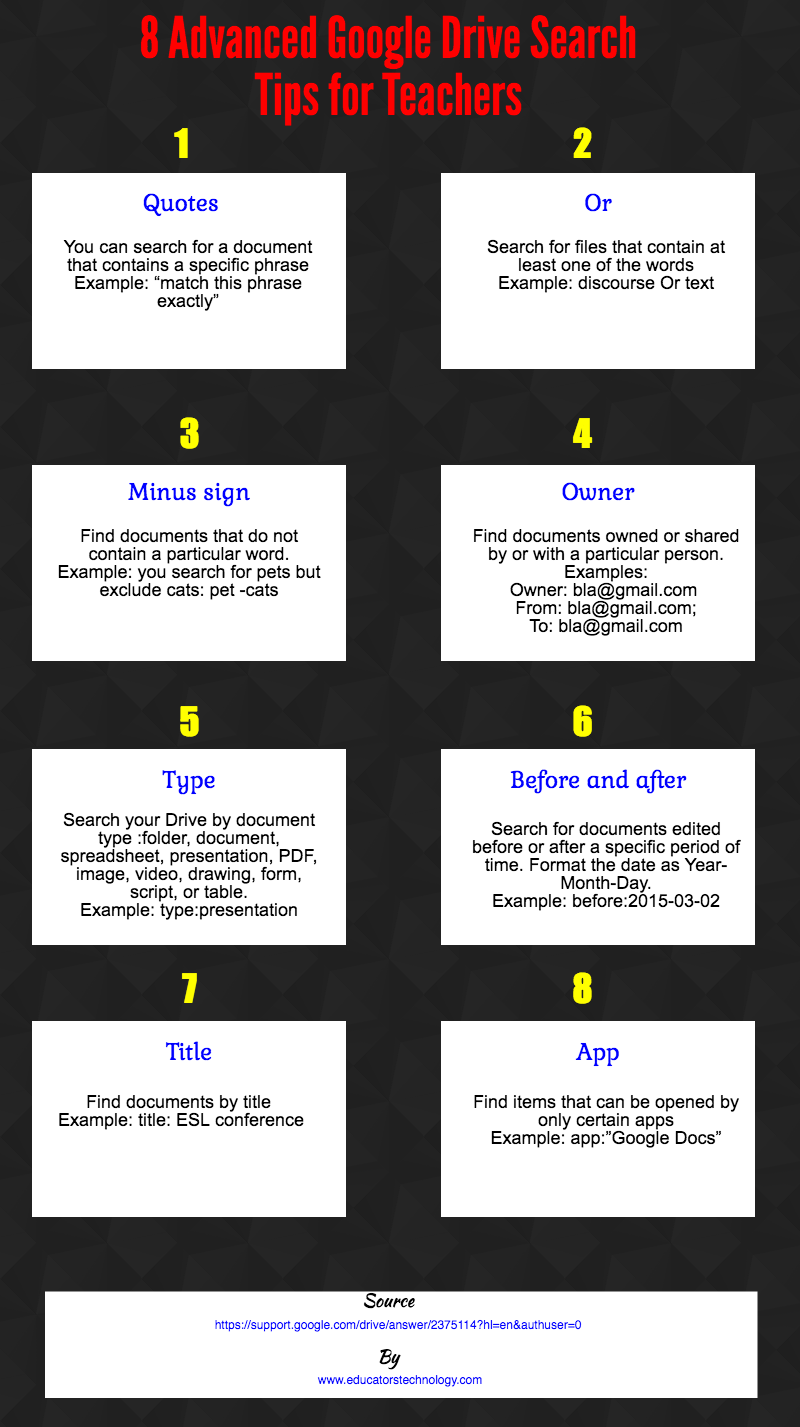
Unbeknownst to many teachers, Google Drive has a set of advanced search functionalities that are similar to the ones used in Google Search. We have revisited 8 of these features and embedded them in the infographic below. Check them out and as always share with us your feedback. Enjoy

8 Advanced Google Drive Search Tips for Teachers
1- Quotes
You can search for a document that contains a specific phrase
Example: “match this phrase exactly”

2- Or
Search for files that contain at least one of the words
Example: discourse Or text

3- Minus sign
Find documents that do not contain a particular word.
Example: you search for pets but excluding cats: pet -cats

4- Owner
Find documents owned or shared by or with a particular person. Examples:
Owner: bla@gmail.com
From: bla@gmail.com;
To: bla@gmail.com

5- Type
Search your Drive by document type :older, document, spreadsheet, presentation, PDF, image, video, drawing, form, script, or table.
Example: type:presentation

6- Before and after
Search for documents edited before or after a specific period of time. Format the date as Year-Month-Day.
Example: before:2015-03-02

7-Title
Find documents by title
Example: title: ESL conference

8-App
Find items that can be opened by only certain apps
Example: aa:”Google Docs”

Source: Drive Help

Rabu, 02 November 2016

Everything Teachers Need to Know about Explore for Google Docs and Sheets - Kang Khoe

November 3, 2016
Explore is a new interesting feature that Google introduced few weeks ago to empower Drive users with a wide variety of new functionalities. In today’s post we are sharing with you (especially those who haven’t seen them yet) a review of the main things you can do with Explore on both Google Docs and Google Sheets. Check them out below and as always share with us your feedback.

1- Explore for Google Docs
Here are some of the new features Explore brought to Google Sheets
1- Access suggested content
As you type in content in your document, Explore will display a panel with suggested content that can help you with the writing of your document. This content includes:

Topics:
This tab features a number of suggested topics related to the content of your document. To access any topic click on its title.


Images: 
The tab provides you with a set of images related to your content which you can add to your document. Added images come with a footnote at the bottom of the document.


Related research: 
In this section you will be able to view research directly related to the topic of your document.


2- Conduct quick searches within your document
Another excellent feature from Explore is the ability for document editors to quickly search their documents. They can type a search query in the search bar and choose whether they want to search their Drive or the entire web.


2- Explore for Google Sheets
Here are some of the new features Explore brought to Google Sheets.

1- Answers to questions
This is only available in English. When you type in data in your sheets, you can use Explore to access quick answers to questions about your data. For instance, in the spreadsheet you created are two columns one for the name of the students and the other for their scores. Examples of the questions you can ask Explore to answer include: what is the total of column B? Which student has the top/least score?. You can also click on suggested questions from Explore to see examples of answers.


Here is how to use this feature:

  • ‘Open a spreadsheet in Google Sheets.
  • In the bottom right, click Explore Explore.
  • Under "Answers," type your question in the box and press Enter.
  • To see example answers, click the suggested questions under the text box.’


2- Charts and analysis
Based on the data you typed in your spreadsheet, Explore provides you with charts and analysis showing trends and patterns in your data. You can also get insights for specific portion of your data by selecting only specific cells. When you hover over any part of the chart you will see the corresponding data on which it was based.


3- Insert charts into your spreadsheets
You can also easily add generated charts and formulae from Explore window right into your spreadsheet. You simply drag and drop  the chart or formula wherever you want in your spreadsheet. To edit a chart, hover your mouse over the chart and click on edit button.


 Follow us on : Twitter, Facebook , Google plus, Pinterest .

New Free Interactive Guides from Apple to Help Teachers Integrate Technology in Their Instruction - Kang Khoe

November 2, 2016
As we were reading about Apple’s ‘everyone can code’ initiative on Edsurge we learned about this program from Apple designed specifically for teachers. Apple Teacher program features a number of resources and materials to help teachers effectively integrate Apple products in their instruction. it covers news, tips, guides and educational apps teachers can use to build skills and enhance their teaching creativity and productivity. ‘And after completing online quizzes, you’ll receive an official Apple Teacher logo that you can share with the world.’


There is also a section in this program which features a number of interesting interactive guides called Starter Guides. These free interactive iBooks will help you learn how to use Apple apps on iPad and Mac to design your personalized learning and teaching materials. Class Tech Tips organized these guides (16 in total) into the following list. Some of our favourite guides from this list are the ones related to iPad:
 Follow us on : Twitter, Facebook , Google plus, Pinterest .

Selasa, 01 November 2016

The Popular Bookmarking Tool Instapaper Premium Is Now Free For All Users - Kang Khoe

November 1, 2016
The popular bookmarking tool Instapaper announced today that its premium version (Instapaper Premium) is now available free of charge for all users. It used to cost $29,99 on yearly subscription. Instapaper premium offers a set of powerful features that include:


  • ‘An ad-free Instapaper website
  • Full-text search for all articles
  • Unlimited Notes
  • Text-to-speech playlists
  • Unlimited speed reading
  • “Send to Kindle” via bookmarklet and mobile apps
  • Kindle Digests of up to 50 articles’

For those of you not yet familiar with Instapaper, this is a great bookmarking app that allows you to save content from the web (e.g videos, articles, visuals, links..etc) to read later. It also lets you add comments to saved content and highlight portions of a text so that you can easily store it, retrieve it, quote and share it. Everything you save to your Instapaper account automatically synced so you can access and read it anywhere using mobile app on Android, iPad or iPhone.

Courtesy of Life Hacker

Two Wonderful Web Tools for Creating Classroom Websites - Kang Khoe

November 1, 2016
If you are looking for some good and easy to use platforms to create a website or blog for your classroom, the tools below are worth your consideration. They both offer a very simple website editor, a huge library of pre-made templates and a bunch of other powerful functionalities to enable you to make professional looking websites. They also support domain name purchase  in case you decide later on to buy a domain name for your website. For more options on tools to use to create a classroom website we recommend this list. Enjoy


1- Weebly for Education


This is an excellent platform that lets you and your students easily create visually attractive websites. As a teacher you can use Weebly to design a classroom blog and create student e-portfolios. The process is very simple: log in to your Weebly account and use the the drag and drop website editor to start working on the look and content of your site.  Your website can include a wide variety of multimedia materials such as videos, pictures, text, maps, and many more. Another interesting feature from Weebly is that it offers students a protected environment to create, share and publish digital content. Teachers ‘have full control over which websites are public, which are private, and which can be edited by the student. It's simple to bulk create new student accounts and oversee your students' activity.’

Watch this video to learn more about Weebly


2- Wix
Wix is another powerful platform to use for creating beautiful websites for your class. As is the case with Weebly, Wix has an easy to use editor that allows you to create and populate your website in a matter of few clicks. Some of the interesting features offered by Wix include: a huge library of pre-made templates to choose from, upload your own fonts, add Google Maps to your website, add animated GIFs to your content, showcase your new collection, events or specials in a stunning slideshow and many more.

Watch this video to learn more about Wix