Tampilkan postingan dengan label Google Drive Tips. Tampilkan semua postingan

Rabu, 30 November 2016

Here Is A Wonderful Google Drive Template for Creating Students Certificates - Kang Khoe

November 30 , 2016
A few days ago one of our readers here in EdTech and mLearning emailed us asking about suggestions on creating students certificates. Our best recommendation is this handy template from Slides new template gallery. Of course, there are several other options to use to create students certificates including, Google Docs, Google Drawing, PiktoChart, Canva, Microsoft Word to name a few but most of these options require you to start building a template for your certificate from scratch. With this template, the designing work has already been done for you and all you have to do is some minor tweaking (e.g. editing and adding your own textual data) before sharing it with others either digitally or through print.


The layout of this template is pretty basic. It consists of a title, student name, a short description, school name, teacher’s name and date. To start using this template, you need to head over to Slides  gallery and click on 'More' on top right hand side and scroll down to the bottom of the page where you will find a template named  'Student Certificate' located under 'Education' category. Once you find it click on it to create a copy in your Google Drive where you can start editing it. You can change the theme of the template by selecting one of the suggested themes on the right hand side. When you are done editing, you can download it in different formats (e.g PNG, PDF), print or share it through a generated link.

Kamis, 03 November 2016

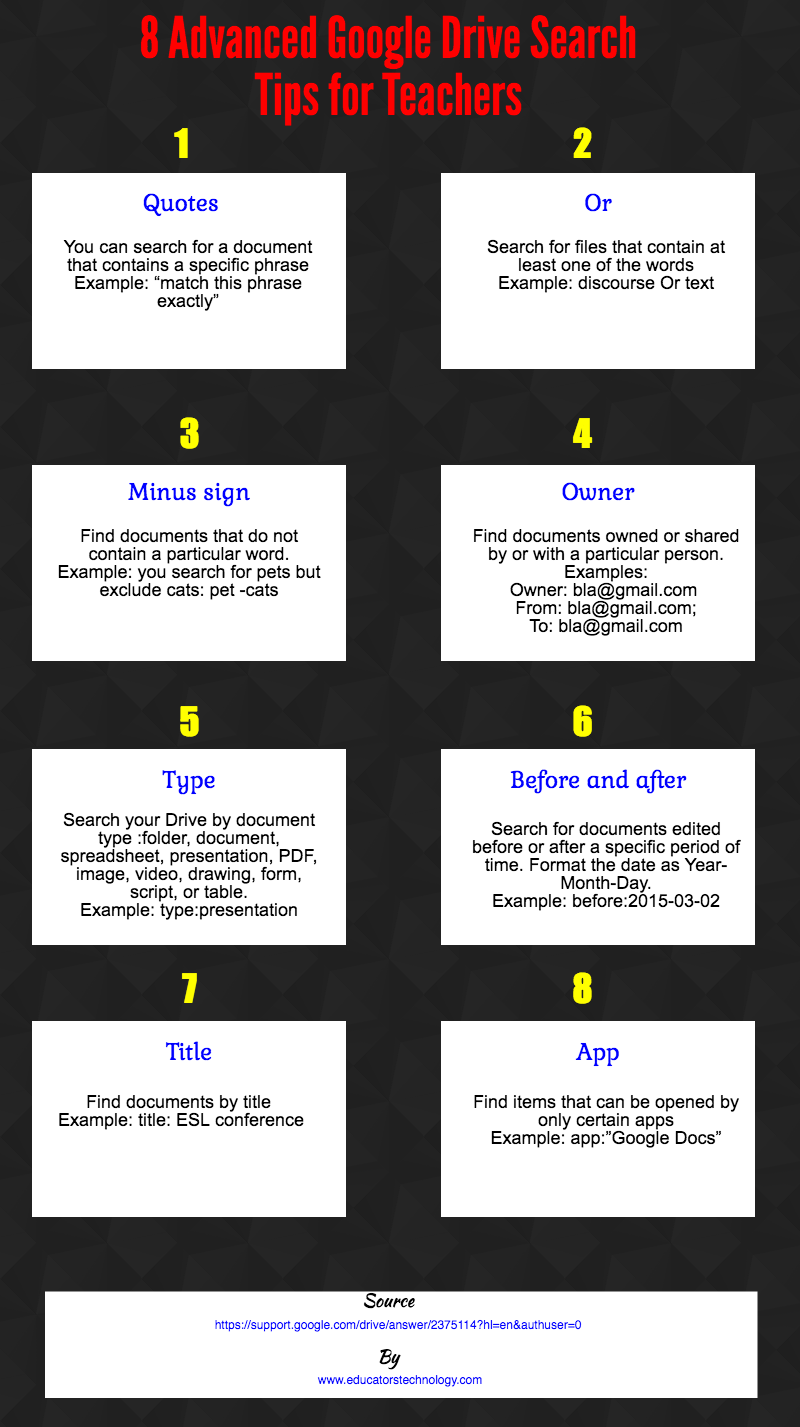
A Beautiful Visual Featuring 8 Advanced Google Drive Search Tips Teachers Should Know about - Kang Khoe

November 3, 2016
Google has recently added some new interesting search features to its Drive service allowing users to  search for and find items and files easier and faster. One of these new features is the integration of Natural Language Processing (NLP) that enables users to conduct Drive searches using customized search queries. For instance, you can write ‘ show me presentations from my language arts class’ and Drive will ‘give you the option to click for those specific search results’. The autocorrect feature has also been added to Drive; in case of a misspelled word, autocorrect suggests potential corrections to choose from.

Unbeknownst to many teachers, Google Drive has a set of advanced search functionalities that are similar to the ones used in Google Search. We have revisited 8 of these features and embedded them in the infographic below. Check them out and as always share with us your feedback. Enjoy

8 Advanced Google Drive Search Tips for Teachers
1- Quotes
You can search for a document that contains a specific phrase
Example: “match this phrase exactly”

2- Or
Search for files that contain at least one of the words
Example: discourse Or text

3- Minus sign
Find documents that do not contain a particular word.
Example: you search for pets but excluding cats: pet -cats

4- Owner
Find documents owned or shared by or with a particular person. Examples:
Owner: bla@gmail.com
From: bla@gmail.com;
To: bla@gmail.com

5- Type
Search your Drive by document type :older, document, spreadsheet, presentation, PDF, image, video, drawing, form, script, or table.
Example: type:presentation

6- Before and after
Search for documents edited before or after a specific period of time. Format the date as Year-Month-Day.
Example: before:2015-03-02

7-Title
Find documents by title
Example: title: ESL conference

8-App
Find items that can be opened by only certain apps
Example: aa:”Google Docs”

Source: Drive Help