October 29, 2016
Google Sheets add-on store features a number of educational extensions to use with your forms and spreadsheets to add amazing functionalities. These add-ons are arranged into various categories. We revisited the ‘
education’ category and selected for you the 8 most popular applications there. Using these add-ons will enable you to:
- Create graphs and forms and write complex math in your sheets
- Create and modify a planning schedule for project management in a spreadsheet; easily scaffold, manage and assess students projects in Google Drive
- Quickly grade and analyze students assessments, split cells, remove duplicates, clean up data and change case
- Add powerful functionality to quizzes you create via Google Forms
- Send personalized mass emails with Gmail and track email opens.
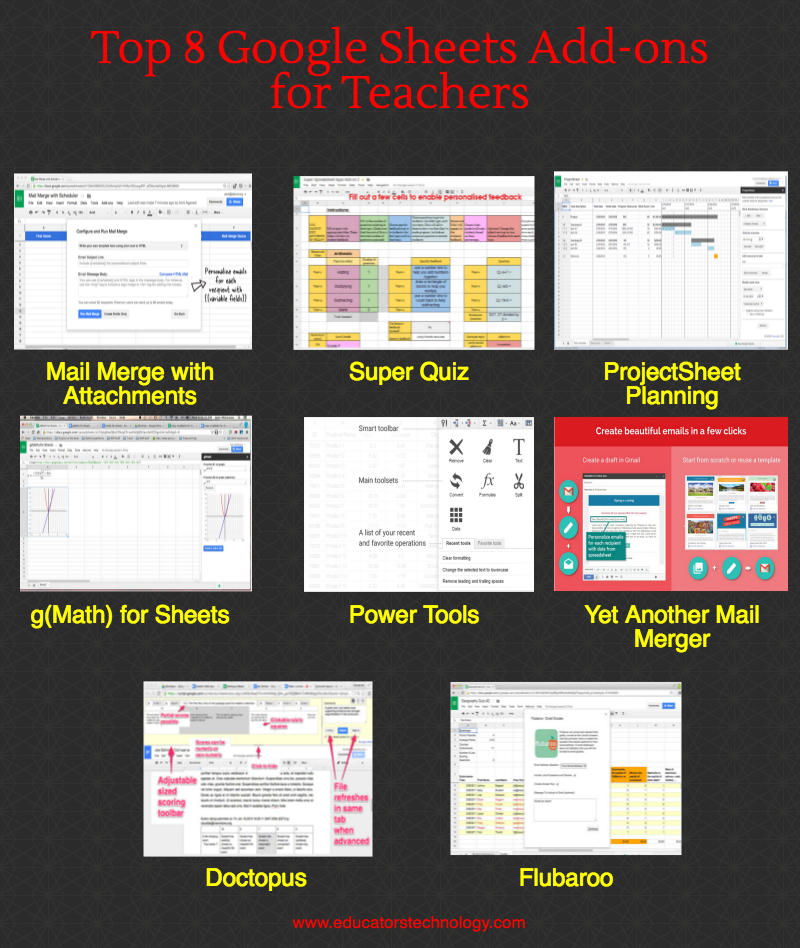
1- g(Math) for Sheets‘This will be an invaluable tool for any math class or math teacher. Now creating math digitally in a collaborative document has become slightly easier. Having this math in a Google Sheet will allow you to create questions in a Google Form as well using the g(Math) Quick Quiz Creator and the QuizNinja for individualized, differentiated forms!!’
2- Doctopus‘Doctopus gives teachers the ability to mass-copy (from a starter template), share, monitor student progress, and manage grading and feedback for student projects in Google Drive…Doctopus increases student collaboration and enables a powerful shift in teacher workflow -- scaling teachers' ability to manage and assess writing tasks and projects that motivate rich, authentic student production and collaboration (e.g. the development of core career, college, and 21st-century skills).’
3- FlubarooFlubaroo is a FREE add-on to Google Forms/Sheets which lets you quickly grade and analyze student performance on multiple choice and fill-in assignments. Within a minute you'll be able to: Get scores for each student, and identify students in need of extra help; view average score, and a histogram of scores; quickly identify questions which a majority of the students missed; share scores with students via email or Google Drive, along with optional notes to the class and/or to each student; and assign your own score to open-ended questions.
4- Power Tools‘Power Tools add-on cuts the clicks on repeated tasks and brings features for organizing and unifying data in Google Sheets… Some of its features include: search all selected sheets for certain values, formulas, notes, and hyperlinks; split values in a column by any delimiter, string, or by position; add or remove text by position, transform formulas, change formula reference type, export range to XML or JSON; delete unwanted characters, types of data, and clean up formatting…’
5- Yet Another Mail Merger‘It's super easy, just write your email template as a draft in Gmail, with markers that will be replaced by data in your spreadsheet to send personalized emails (use this syntax: {{Column Header}}). You can format your email directly in Gmail and add inline images and attachments.’
6- Super Quiz‘Super Quiz adds brilliant functionality to a quiz made with Google Forms. By completing the quiz once with an answer key, all future submissions are automatically graded correct or incorrect. What’s more - you can get a break down of class understanding and a list of incorrect students for each question - perfect for intervention!’
7- Mail Merge with Attachments‘Send personalized email messages with attachments to multiple people using Mail Merge for Gmail. Each e-mail message is unique and, unlike putting email addresses in the CC or BCC fields, each recipient will receive your intended message as if it were sent solely to them. Email tracking will help you know when people have read your email.’
8- ProjectSheet Planning‘This free add-on helps you to create and modify a project schedule in a spreadsheet fast and accurately using a WBS work breakdown structure of tasks and start and finish dates per task. The Gantt chart can be set to show the project schedule for the range of weeks you like. During project execution, options for progress indication give color alerts in the schedule or Gantt for progress and delay.’